Purpose: This article walks you through going live with the LyveCom Broadcaster app from the LyveCom dashboard.
Intended Audience: Creators, Hosts, Brand Partners, Ecommerce Managers
Go Live with the LyveCom Broadcaster App
Use your mobile device to stream high-quality video directly to LyveCom.
✅ Before You Begin
Make sure the LyveCom Broadcaster app is downloaded and properly set up. LyveCom Broadcasting App Set Up
If you are simulcasting to socials, make sure those are set up already.
Start Your Stream
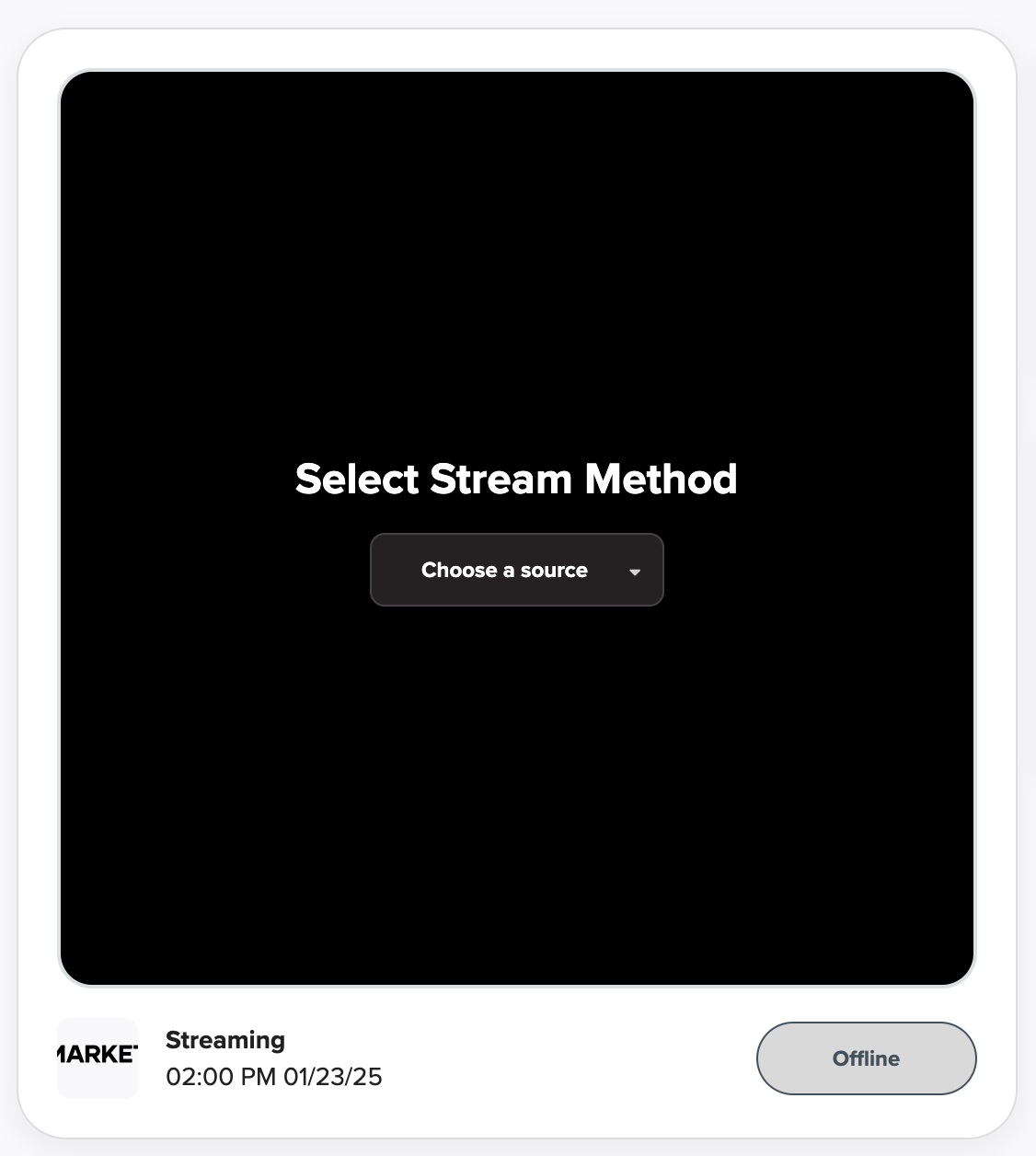
In your LyveCom Dashboard, select Source of Broadcast: LyveCom Broadcast App
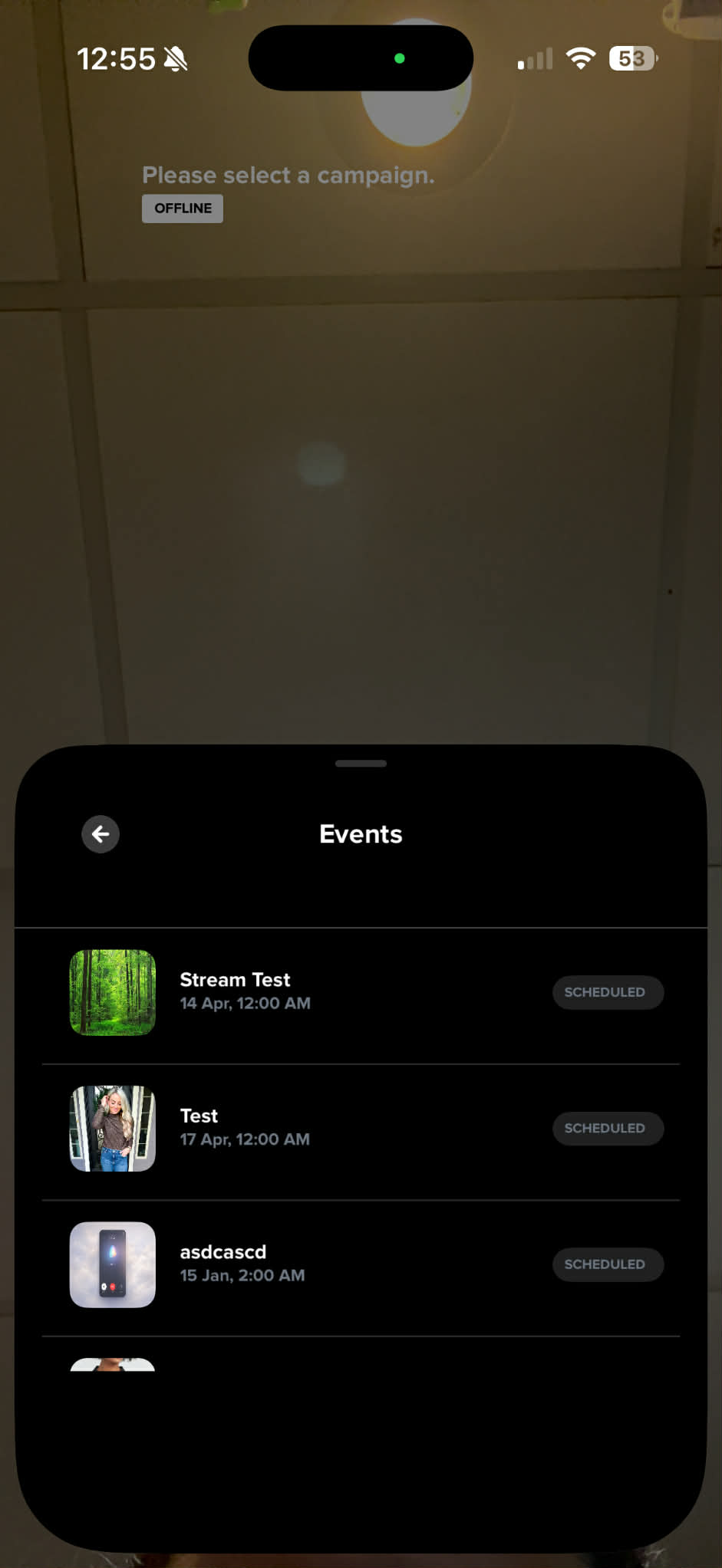
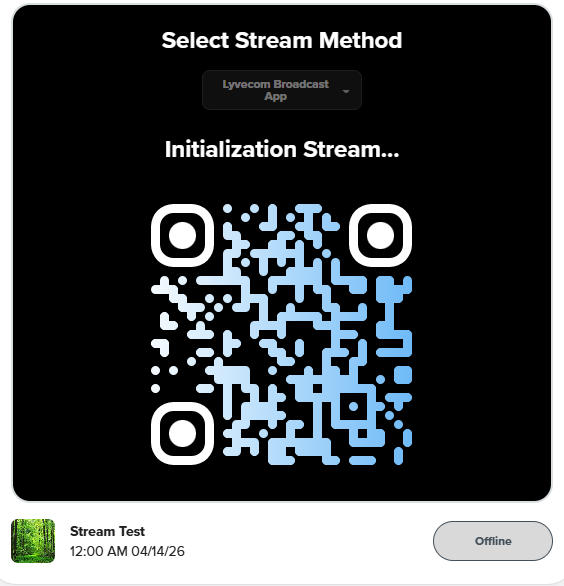
On your phone or tablet, tap Events to select your current Event or Scan the QR Code
Tap round white circle on the broadcasting app when you're ready! Please note that there is not a preview anymore. So when you hit this, it’ll count down from 3 and then you are live!
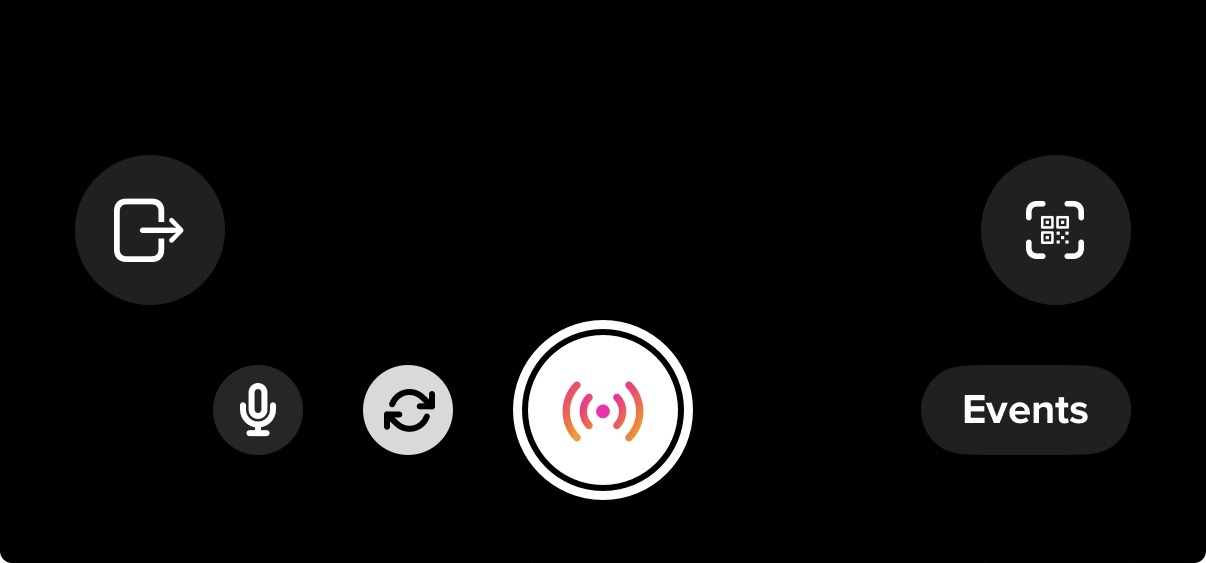
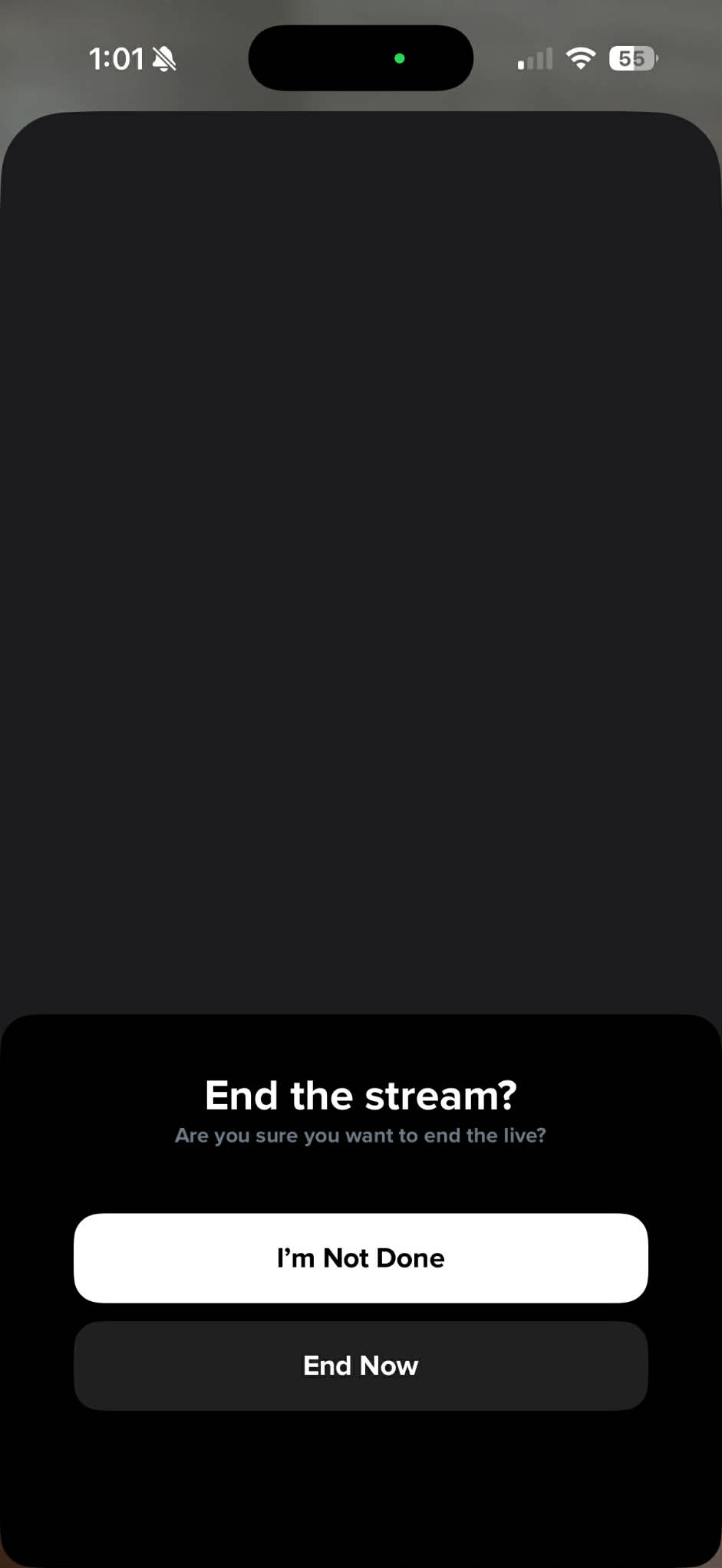
4. When you are finished, click that circle again. Select “End Now”
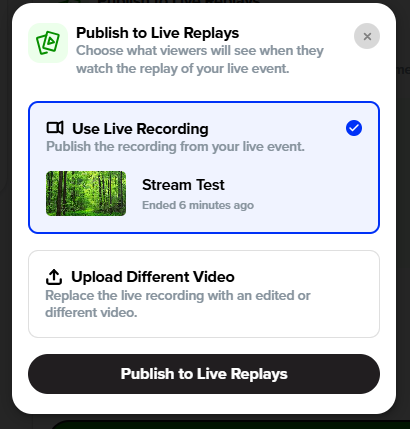
5. To push your replay to your website, go back to the LyveCom Dashboard on your computer. If you are ready to push to site, select “Publish to Live Replays”
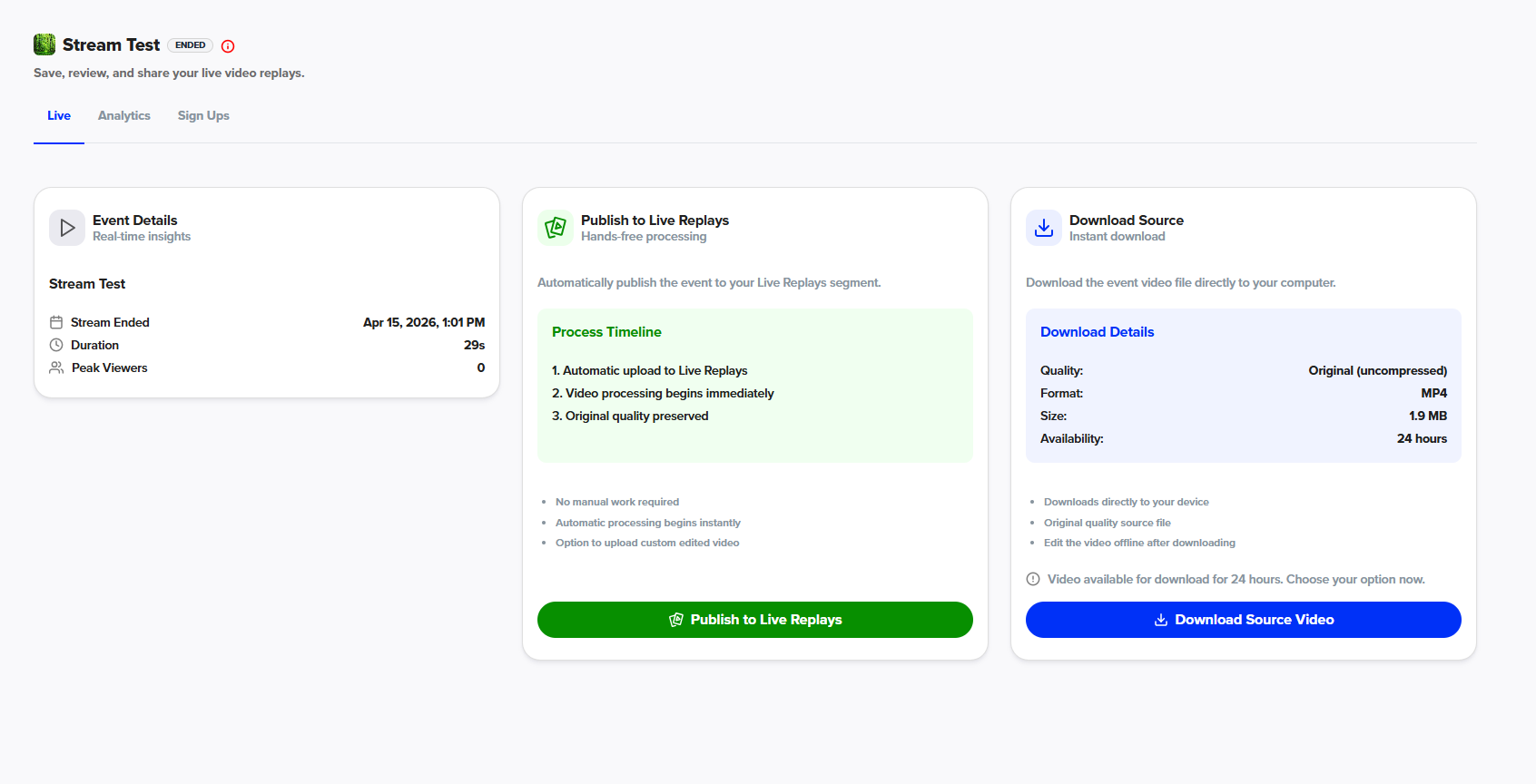
6. If you’d like to edit your live, select “Download Source Video”. Then edit your video on your editing software. Once done, Select “Publish to Live Replays” and “Upload Different Video”
Have more questions? Reach out to our Support Team in the bottom right corner! - we’re happy to help!
Happy selling! ✨
Was this article helpful?