Purpose: This article walks you through setting up the LyveCom Broadcaster app to stream directly to your LyveCom dashboard.
Intended Audience: Creators, Hosts, Brand Partners, Ecommerce Managers
Setting Up LyveCom Broadcaster
Step 1: Download LyveCom Broadcaster
Go to the App Store or Google Play
Search for LyveCom Broadcaster and download the app or https://testflight.apple.com/join/VzW8TuC4
Go to dashboard.lyvecom.com (Make sure you are logged out of your dashboard through Shopify.
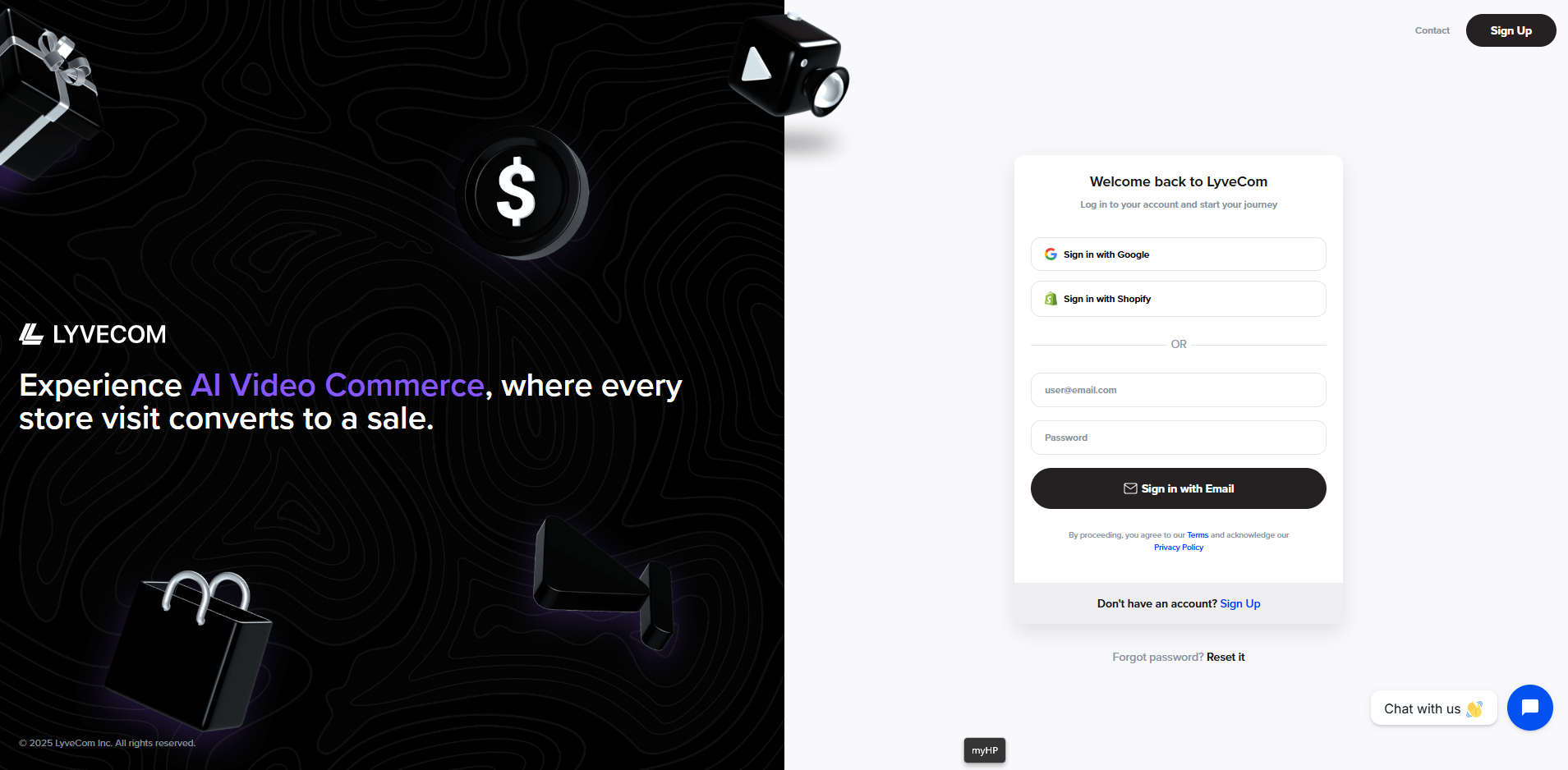
4. Select “Reset Password”. Use the same email as your Shopify account
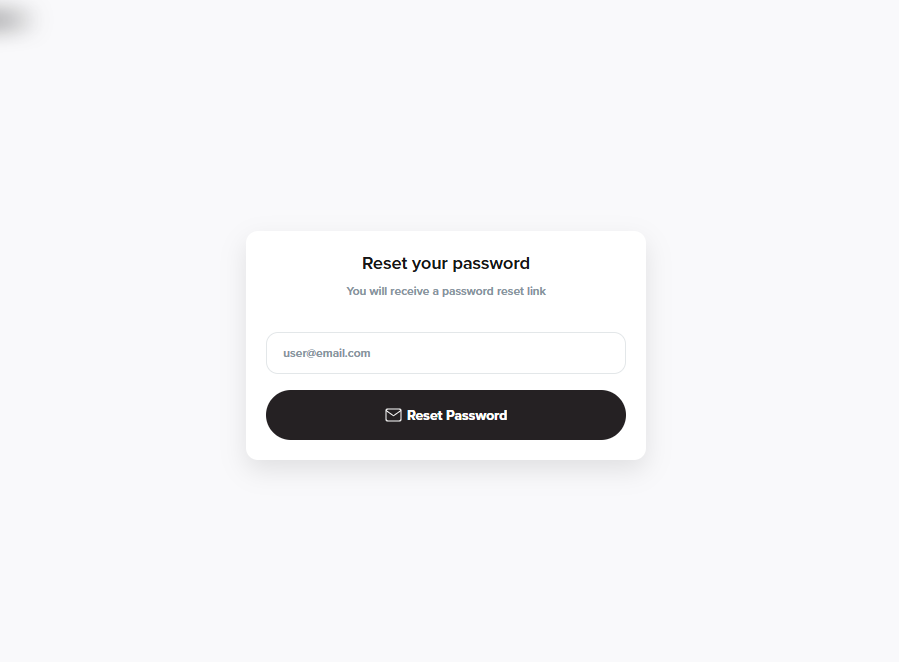
5. Follow steps to create a new password. (This will not effect login in through Shopify in the future but will be needed for the LyveCom broadcasting app.)
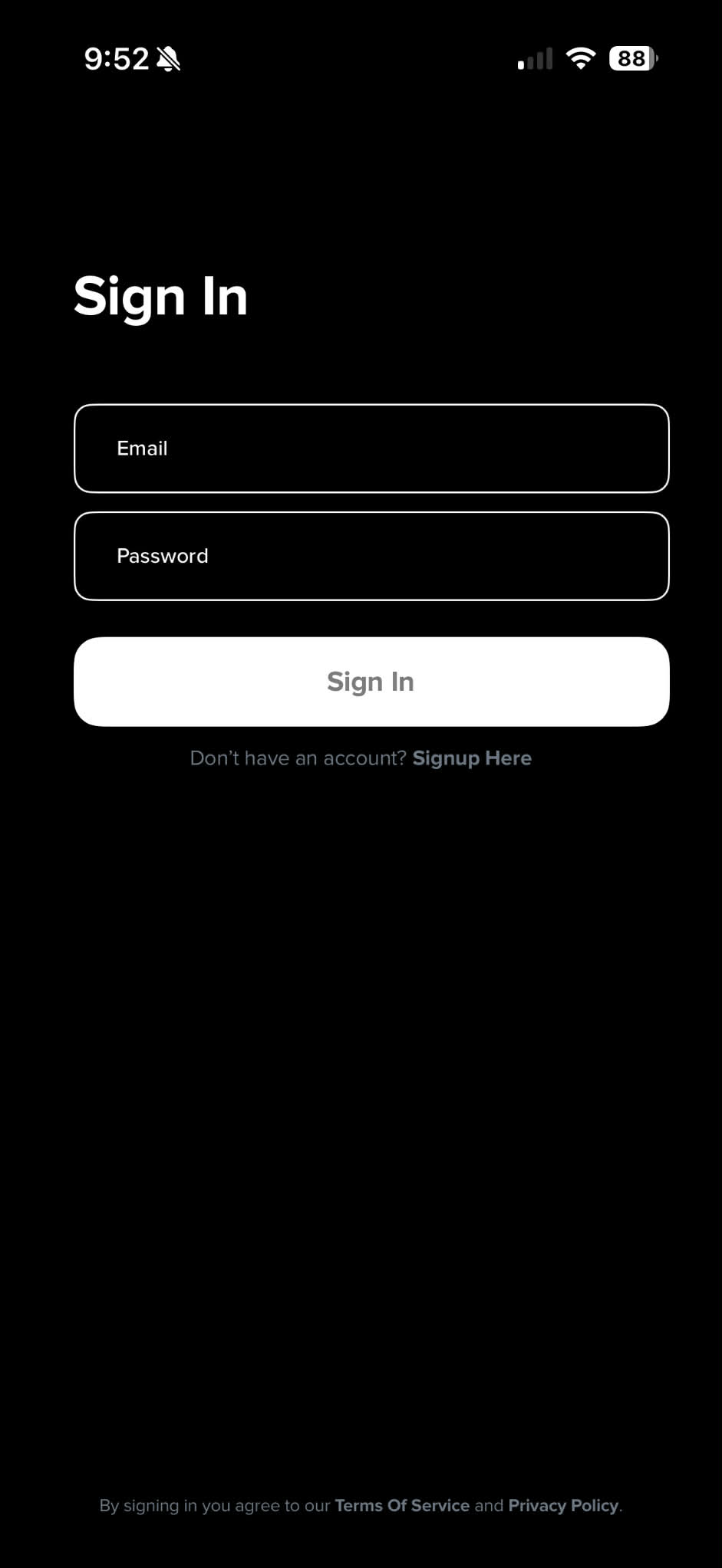
6. Login with new email and password
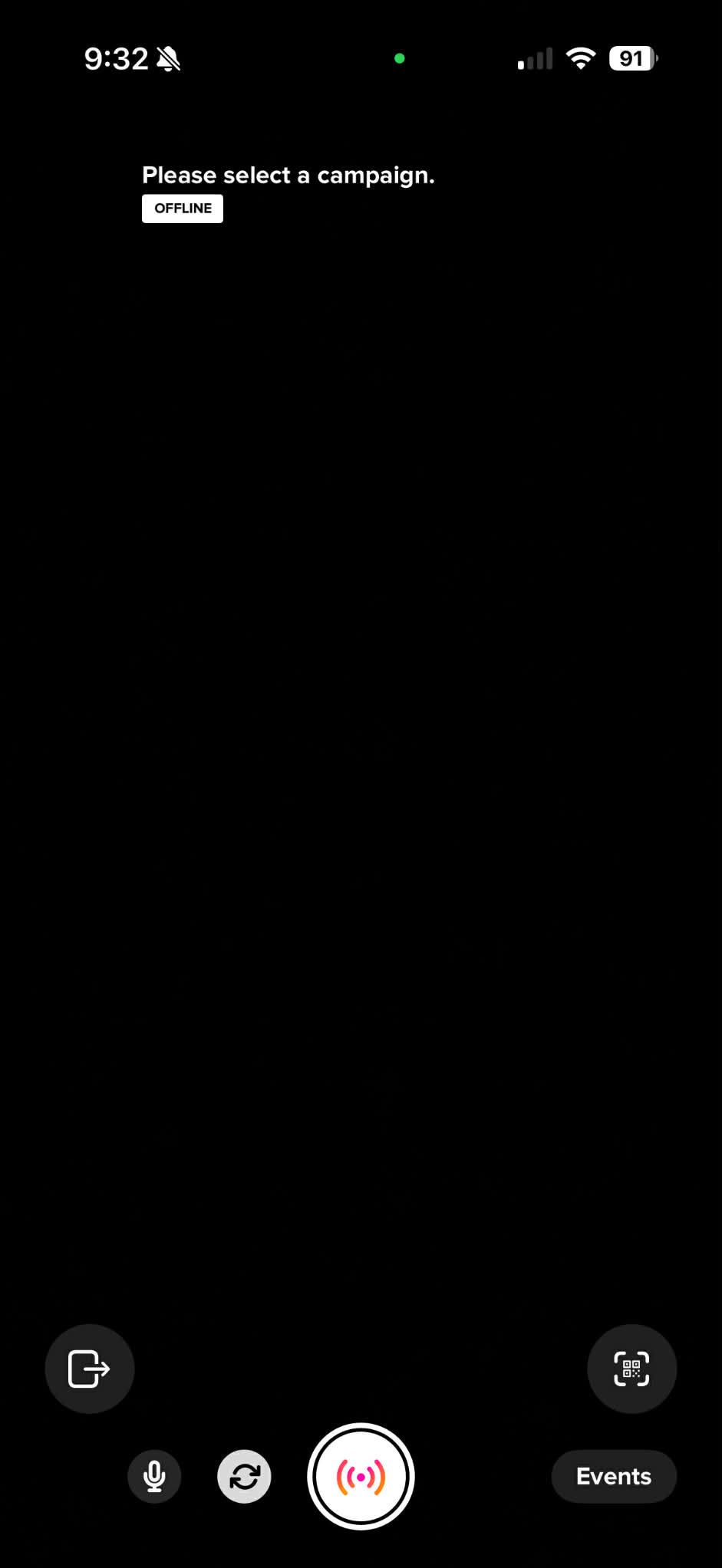
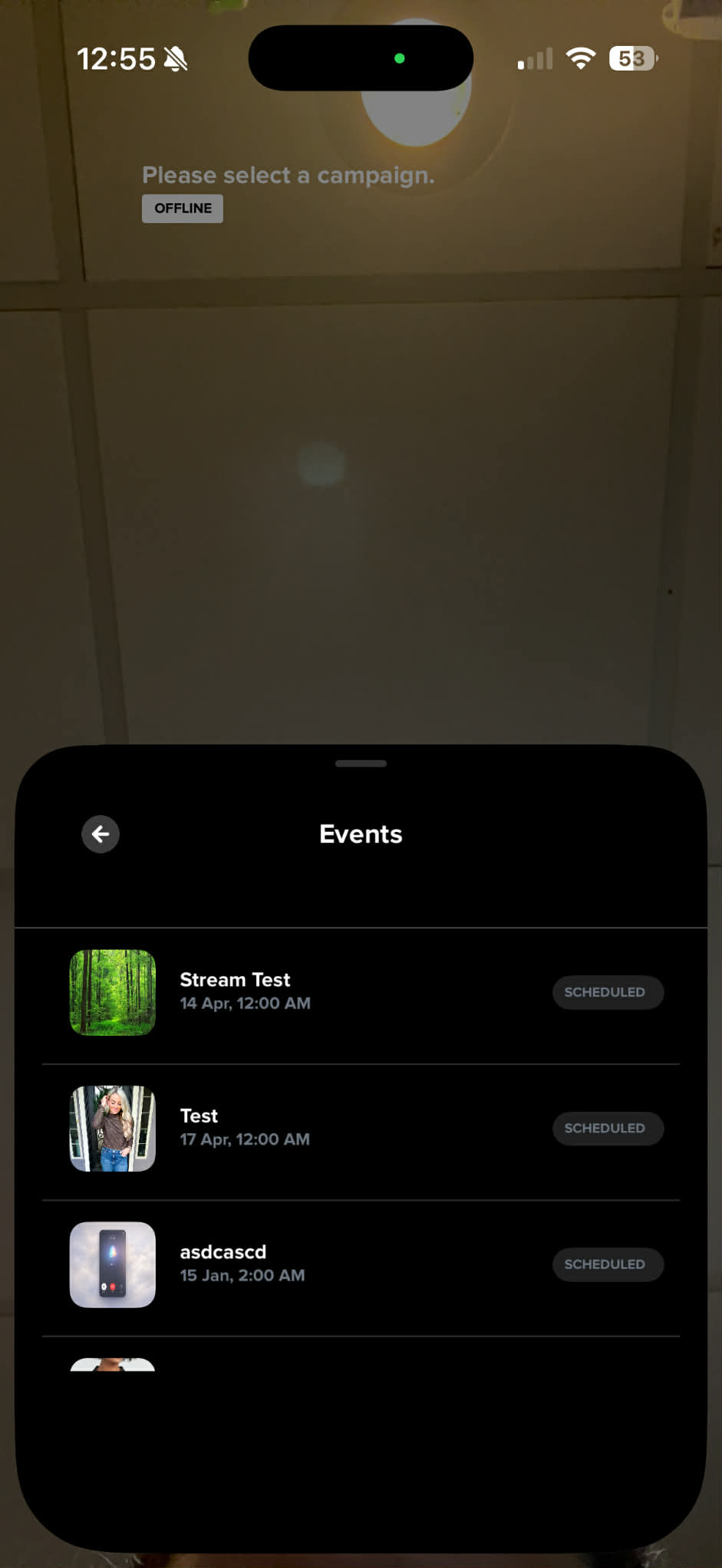
7. You are now ready to go live! Find your upcoming lives under “Events”
Have more questions? Reach out to our Support Team by clicking “Get Help” in the bottom right hand corner - we’re happy to help!
Happy streaming!