Purpose: This article explains how to manually resync your inventory, product images, and descriptions in the LyveCom dashboard.
Intended Audience: Onboarding Project Managers
Manually Resync Products in LyveCom
|| Note, LyveCom auto-syncs with Shopify! You will only need to manually re-sync if you are about to go live with products you have JUST uploaded.
Access Product Resync Settings
Log in to your LyveCom dashboard.
Navigate to Settings > Products Resync.
Reload Your Product Catalog
- Click "Sync Products" to manually trigger a sync.
|| This step pulls in new products, images, and descriptions.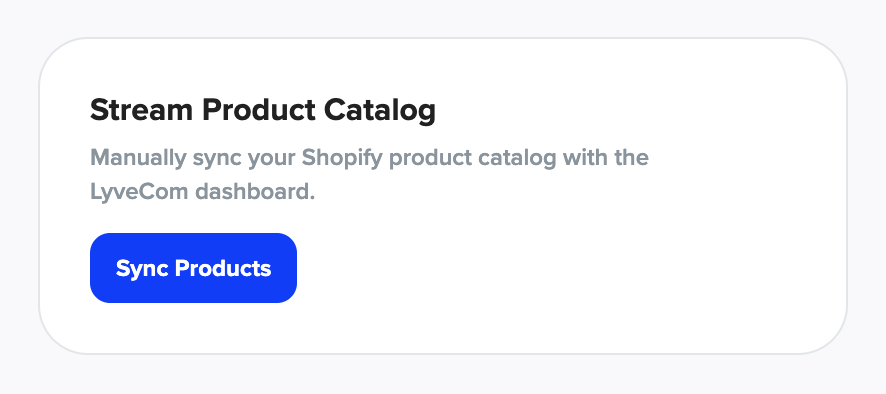
- Click "Sync Products" to manually trigger a sync.
When to Use Manual Resync
Your catalog auto-updates regularly.
If you’ve just added new products and want to launch a campaign immediately, use the manual resync to update your dashboard instantly.
Have more questions? Reach out to our support team - we’re happy to help!
Happy selling! ✨
Was this article helpful?