Purpose: This guide explains how to update or revise the video content within an already published playlist on LyveCom.
Intended Audience: Sellers, Content Managers, Livestream Coordinators
Updating a Published Playlist
Keep your content fresh and relevant by editing your playlist anytime.
Step-by-Step: Update Your Playlist
Step 1: Go to Your Playlists
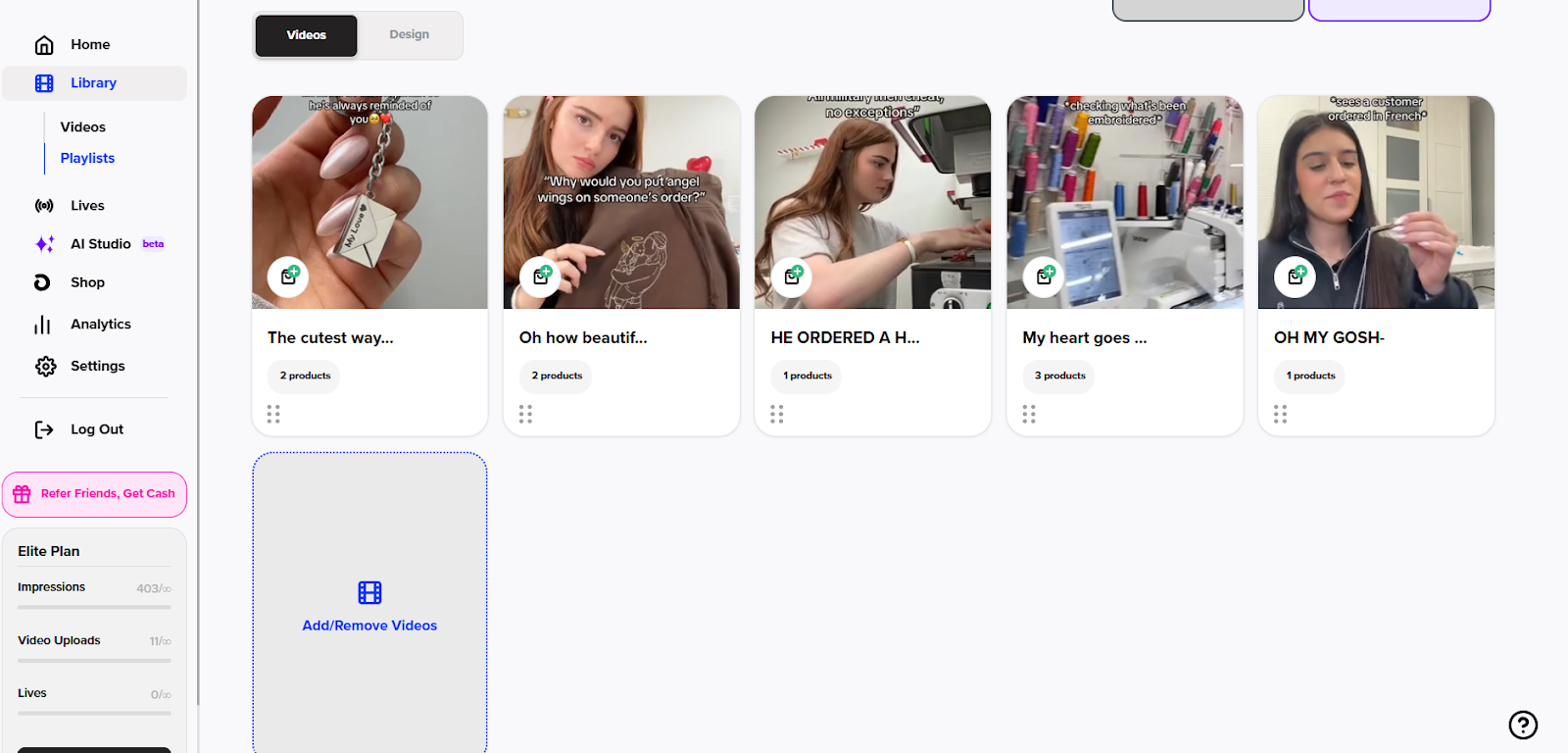
- Navigate to your Library → Playlists
** **Step 2: Open the Playlist Editor
- Click on Add/Remove Videos for the playlist you want to edit
Step 3: Select or Deselect Videos
To add a video: check the blue box next to any new video
To remove a video: uncheck the blue box next to the video you no longer want in the playlist
Step 4: Confirm Your Selection
- Click Update
Step 5: Apply Your Changes
- Click Apply Changes to save your updated playlist
✅ Your playlist is now refreshed and ready to go with the new content!
Have more questions? Reach out to our support team - we’re happy to help!
Happy selling! ✨
Was this article helpful?